
Wedding Booking Management — Send Quotes & Confirm Events Online
Manage booking requests, send professional quotations, and confirm wedding events from your vendor dashboard on itsmy.wedding.
How do wedding vendors manage booking requests online?
Online booking management replaces the scattered mix of WhatsApp messages, phone calls, and DMs that most wedding vendors juggle during peak season. Instead of tracking requests across five different apps, you handle everything from one dashboard.
On itsmy.wedding, when a couple requests your services, the inquiry lands directly in your Inbox. You can review the event details, send a professional quotation with pricing and terms, and track the booking through every stage — from pending to confirmed to completed.
The system keeps both you and the couple on the same page. Quotes, revisions, confirmations, and messages all live in one place, so nothing gets lost in translation.
TL;DR
Receive booking requests in your Inbox, send professional quotations with pricing, and track every event from inquiry to completion — all from one dashboard.
Open your Inbox tab

From your vendor dashboard, click the Inbox tab. This is your central hub for all client interactions — it is split into two sections: Bookings at the top and Chats below.
The Bookings section shows all incoming requests organized by status: Pending, Confirmed, and Past. The Chats section displays active message threads with couples who have reached out.
Review a new booking request

Each booking request card shows the couple's name, the date they requested, their preferred event date, estimated guest count, and a personal message describing what they need. This gives you everything required to prepare an accurate quotation.
If the couple has requested a revision to a previous quote, a yellow banner on the card shows their feedback so you can address it directly.
Send a professional quotation

Click Send Quote on any pending request to open the quotation form. Fill in four fields: a description of the service you are offering, the total price, the advance amount you require, and any terms and conditions (such as cancellation policies or inclusions).
Once you click Send Quote, the couple receives your quotation instantly with a professional format. They can accept it, request a revision, or decline — and you will see their response in real time.
View confirmed bookings

When a couple accepts your quotation, the booking moves to the Confirmed tab. Each confirmed booking card displays the event date, the agreed pricing, and the client's details.
Confirmed bookings are automatically reflected in your dashboard statistics — the "Upcoming Bookings" count and "Confirmed Revenue" figure update in real time. The event date also appears on your calendar.
Respond to client messages

Below the bookings section, the Chats area shows all active message threads. Each thread displays the couple's name, their last message, the time since their last activity, and an unread count badge if you have new messages.
Click any thread to open a chat popup where you can respond in real time. You can also send a formal quotation directly from the chat by clicking the Send Quotation link in the chat header.
Manage everything on desktop

On a desktop or laptop, the Inbox provides a wider view with all booking cards laid out in a grid. You can see more details at a glance, compare multiple requests side by side, and respond to chats without scrolling.
The five stat cards at the top of your dashboard — New Requests, Unread Messages, Leads to Follow Up, Upcoming Bookings, and Confirmed Revenue — give you an instant pulse on your business health.
Next Steps
- Track leads from every channel — manage inquiries from WhatsApp, Instagram, and referrals
- Manage your availability calendar — block dates and avoid double-booking
- List your business — create your vendor profile and start receiving bookings
Frequently Asked Questions
Keep learning
Related Guides
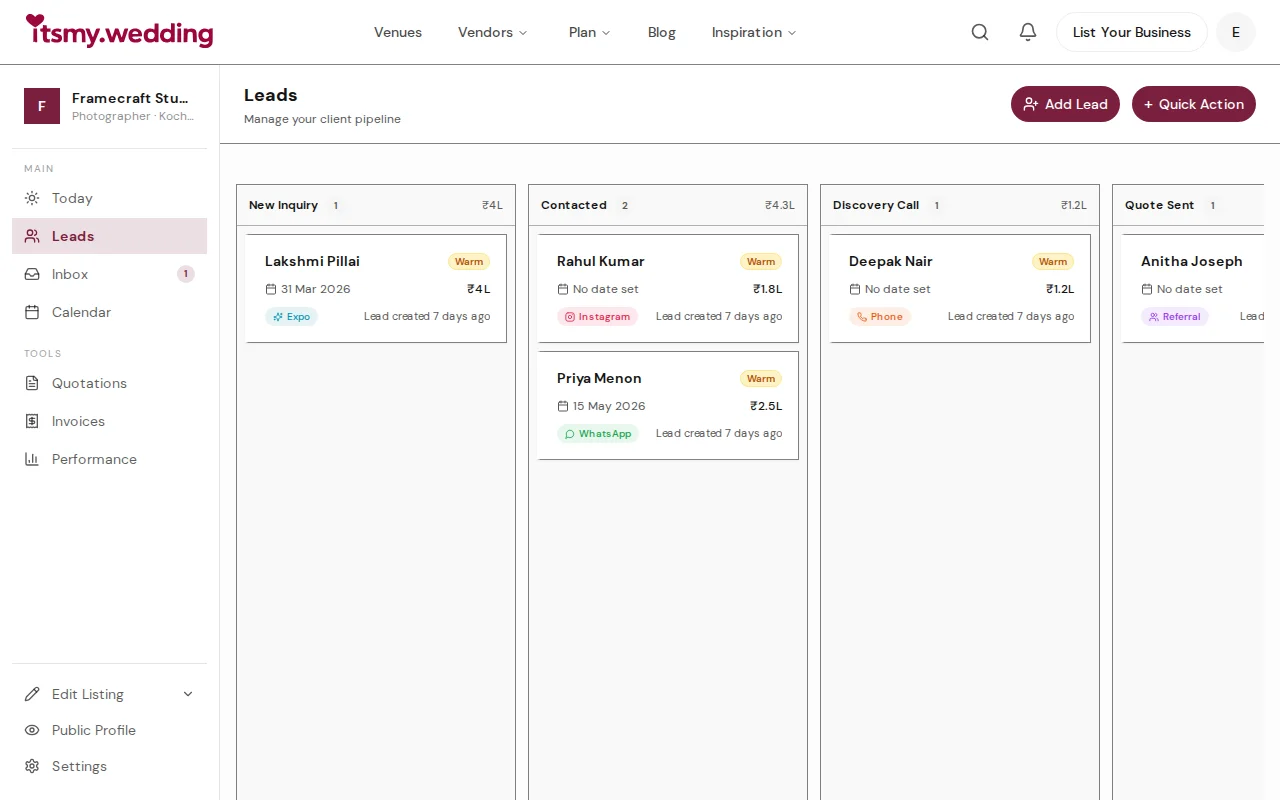
Wedding Vendor CRM — Track Leads from WhatsApp, Instagram & Referrals
Manage all your wedding inquiries in one pipeline. Track leads from every channel with automated follow-ups on itsmy.wedding.

Wedding Payment Tracking — Milestones, Deposits & Due Dates for Vendors
Track deposits, milestone payments, and due dates for every wedding booking. Stay on top of collections with payment tracking on itsmy.wedding.

Quick-Add Wedding Vendors in the Field — Sales Team Guide
Register a new wedding vendor in 60 seconds during a field visit. Step-by-step guide for sales executives using the Quick Add flow on itsmy.wedding.