
List Your Wedding Business on itsmy.wedding — Get Found by Couples in Kerala
Create your free vendor profile on Kerala's largest wedding marketplace. Step-by-step guide to listing your business and getting discovered by engaged couples.
How do I list my wedding business online and get discovered by couples?
Listing your wedding business on itsmy.wedding takes about 10 minutes. The onboarding wizard walks you through four steps: choosing your category, entering your business details, uploading your best photos, and adding your contact information.
Once submitted, your profile enters a brief review period (2–3 business days). After approval, your storefront goes live and couples across Kerala can discover you through search, category browsing, and AI-powered recommendations. You get a professional profile page, a built-in booking system, a CRM for managing leads, and a calendar — all for free.
The key to getting found is completeness. Profiles with high-quality photos, detailed service descriptions, FAQs, and transparent pricing rank higher in search results and convert more browsers into booking requests.
TL;DR
Create your free vendor profile in 10 minutes, get approved in 2–3 days, and start receiving booking requests from engaged couples across Kerala.
Start the onboarding wizard

Navigate to List your business from the main navigation or go directly to /vendor/onboard. The first step asks you to choose your vendor category — Photographer, Venue, Caterer, Makeup Artist, and so on.
Your category determines the fields you see in the next steps. A photographer will be asked about their shooting style and equipment, while a venue will be asked about seating capacity and catering options. Choose the category that best describes your primary service.
View your business listing

After completing the wizard and submitting your profile, visit the My Business page to see your listing. Each vendor card shows your business name, category, location, and current status — Pending Approval, Active, or Incomplete.
If your profile is still pending review, a green banner confirms your application was submitted successfully. You can continue to your dashboard to start enriching your profile while you wait for approval.
Complete your profile with the enrichment checklist

Your dashboard includes a Profile Strength meter and an enrichment checklist on the right sidebar. These show exactly which sections of your profile are complete and which need attention.
The checklist items include adding services with pricing, uploading gallery photos, writing FAQs, setting your availability, and filling in business details. Each completed section increases your profile strength score, which directly impacts your visibility in search results.
Add photos, services, and details

Click any incomplete item in the enrichment checklist to open its dedicated form. The Gallery page lets you upload your best work — photos and videos that showcase your style. The Services page lets you list your packages with descriptions and pricing. The FAQs page lets you answer common questions couples ask.
Each enrichment page is designed to be quick — you can complete most sections in under five minutes. The more detail you provide, the more confidence couples have when considering your services.
See your public profile

Click View Public Listing from your dashboard to see exactly what couples see when they find you. Your public profile displays your cover image, profile photo, business name, location, category, starting price, description, gallery, services, FAQs, and a prominent "Request to Book" button.
This is your digital storefront — it replaces the need for a separate website. Couples can browse your work, read your FAQs, check your pricing, and send a booking request all from this single page.
Your profile on desktop

On desktop, your profile page expands to show a full-width gallery grid, a sidebar with quick-action buttons (Book, Chat, Share), and more detailed service descriptions. The layout is designed to showcase your work in the best possible light on larger screens.
The profile is also optimized for search engines — each vendor page includes structured data (JSON-LD) that helps Google display your business in local wedding searches with rich snippets showing your rating, price range, and location.
Next Steps
- Track leads from every channel — manage inquiries from WhatsApp, Instagram, and referrals
- Managing booking requests — respond to inquiries and send quotations
- Manage your availability calendar — block dates and avoid double-booking
Frequently Asked Questions
Keep learning
Related Guides
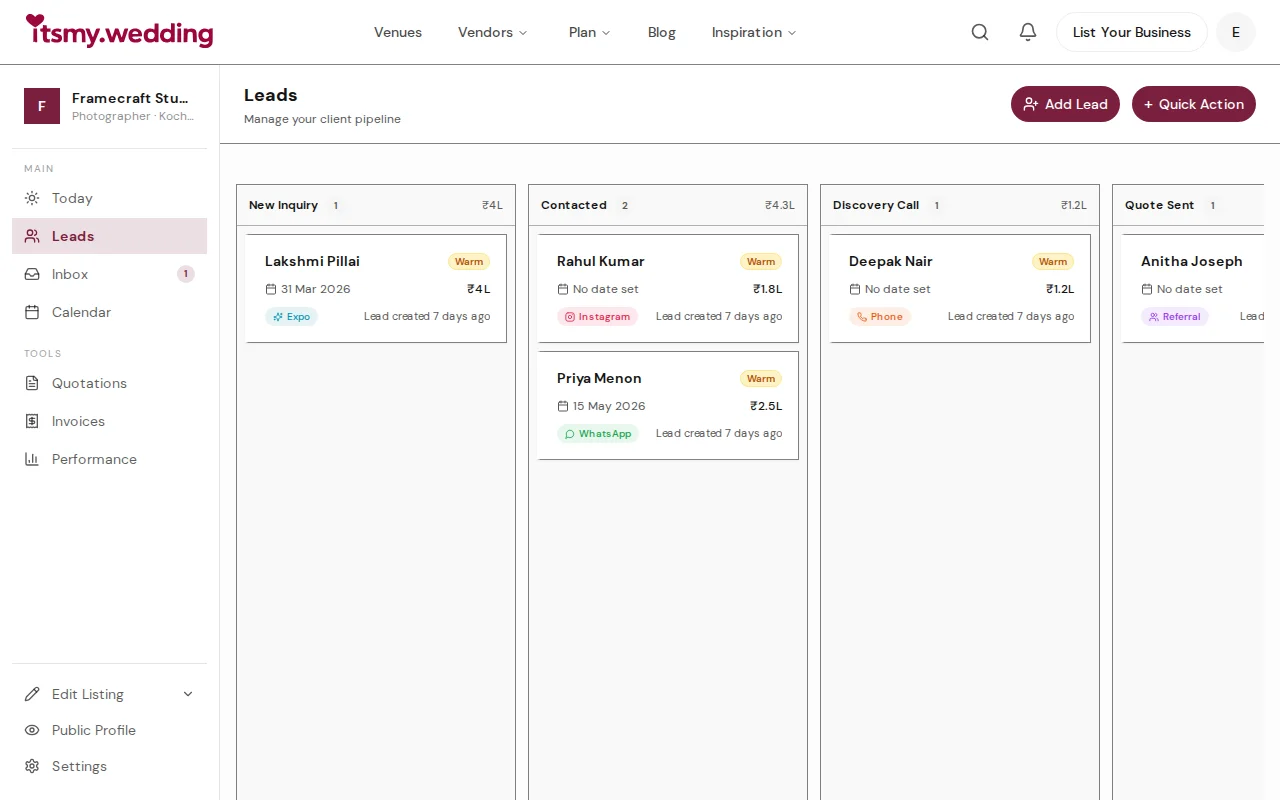
Wedding Vendor CRM — Track Leads from WhatsApp, Instagram & Referrals
Manage all your wedding inquiries in one pipeline. Track leads from every channel with automated follow-ups on itsmy.wedding.

Wedding Booking Management — Send Quotes & Confirm Events Online
Manage booking requests, send professional quotations, and confirm wedding events from your vendor dashboard on itsmy.wedding.

Quick-Add Wedding Vendors in the Field — Sales Team Guide
Register a new wedding vendor in 60 seconds during a field visit. Step-by-step guide for sales executives using the Quick Add flow on itsmy.wedding.