
Wedding Vendor Calendar — Manage Availability & Avoid Double-Booking
Keep all your wedding bookings in one calendar. Block dates, add external bookings, and switch between month, week, and agenda views on itsmy.wedding.
How do wedding vendors manage their calendar across multiple booking channels?
Most wedding vendors juggle bookings from multiple sources — the itsmy.wedding platform, WhatsApp inquiries, Instagram DMs, phone calls, and referrals from other vendors. Without a central calendar, double-booking becomes a real risk, especially during the October–February wedding season in Kerala.
The itsmy.wedding calendar gives you a single view of every commitment. Platform bookings appear automatically, and you can add external bookings manually so that your entire schedule lives in one place. Colour-coded indicators make it easy to distinguish confirmed events from pending requests at a glance.
Whether you prefer a month overview, a weekly breakdown, or a simple chronological list, the calendar adapts to how you work — on your phone between events or at your desk during the off-season.
TL;DR
View all your bookings — platform and external — in one calendar. Switch between month, week, and agenda views, and add external bookings so you never double-book.
Open your Calendar tab
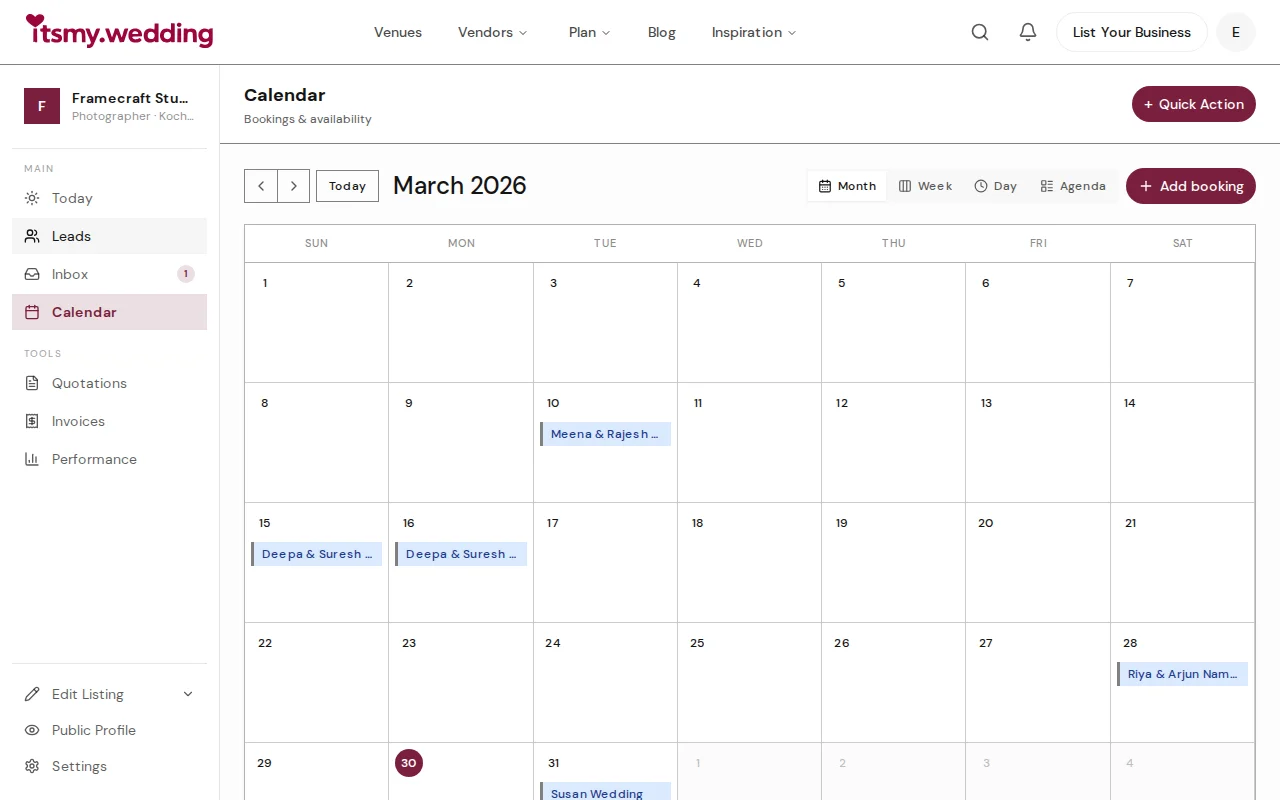
From your vendor dashboard, click the Calendar tab. The default view is a monthly calendar that shows all your bookings at a glance. Each booked date displays a colour-coded dot or bar — green for confirmed, amber for pending, blue for external bookings.
The toolbar at the top lets you navigate between months, jump to today, switch views, and add new bookings. A legend at the bottom explains what each colour means.
Click a date to see details

Click any date on the calendar to open a detail sheet. This panel shows all bookings for that day — the client name, event type, venue, time, guest count, and amount. If the day is free, you will see a message confirming the date is available.
Each booking card in the detail sheet is colour-coded by status, so you can immediately see which events are confirmed and which are still pending your response.
Add an external booking
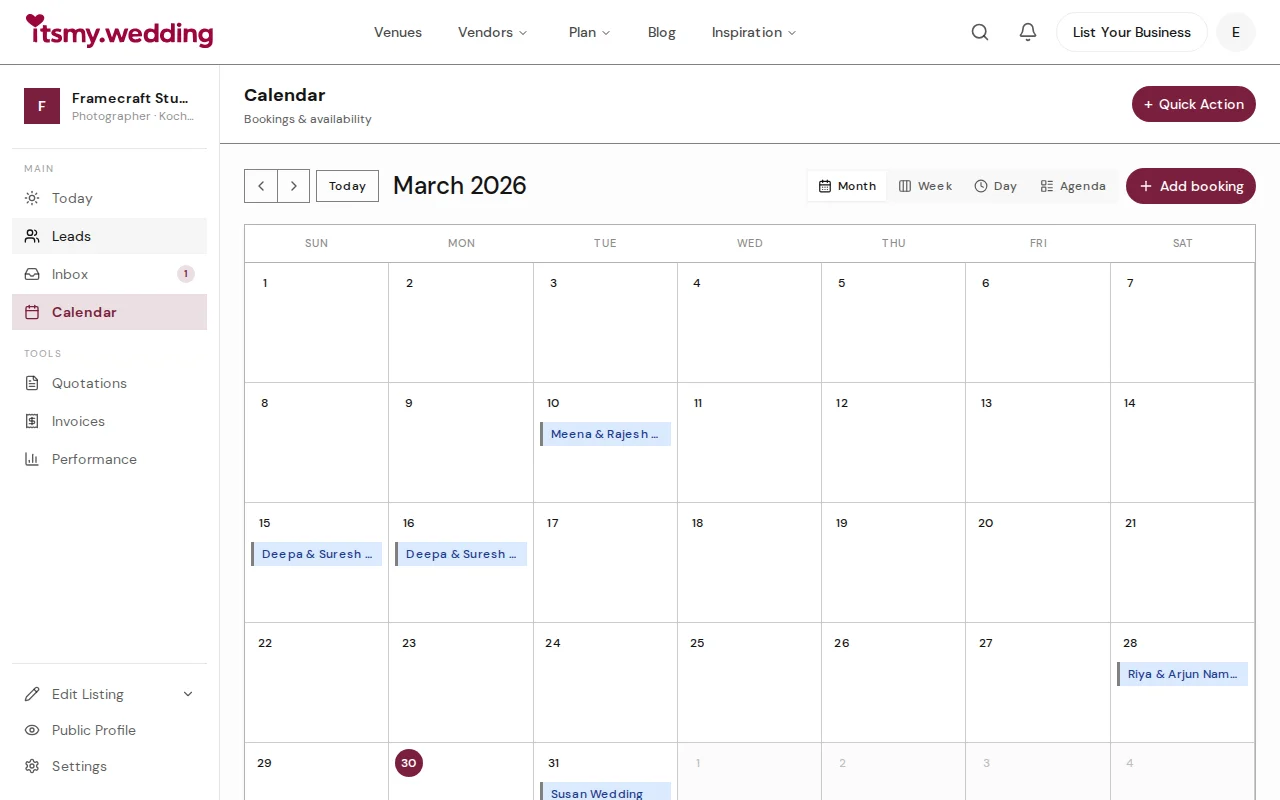
Click the Add booking button in the toolbar or tap the plus icon on any date. A dialog opens where you can enter the client name, phone number, event type, and total amount.
This is designed for bookings you received outside of itsmy.wedding — through WhatsApp, phone calls, or referrals. Once added, the external booking appears on your calendar with a blue indicator so you can distinguish it from platform bookings. If you need to add more details (venue, time, notes), click "More details" to expand the form.
Switch to Week view
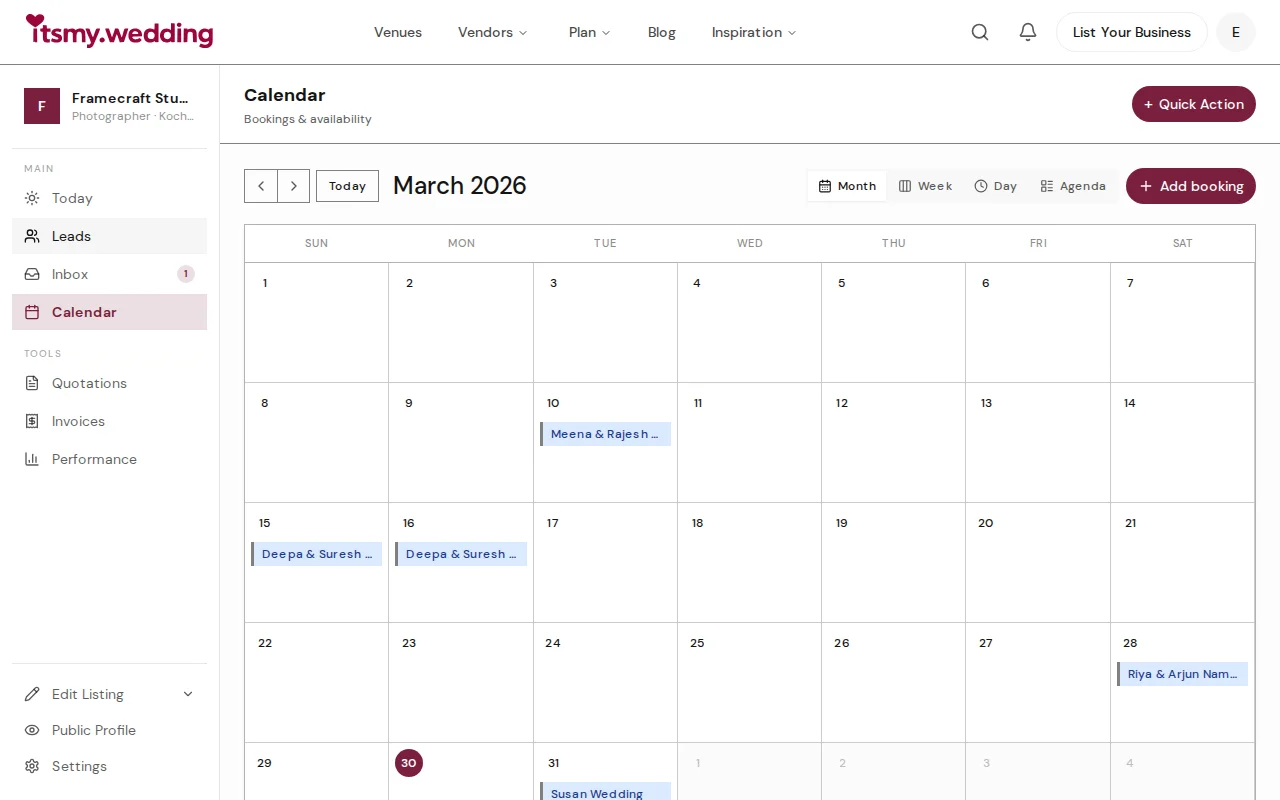
Use the view toggle in the toolbar to switch to Week view. This shows seven days at a time with bookings positioned along a time axis, making it easy to see exactly when each event starts and ends.
Week view is particularly useful during busy wedding weekends when you may have multiple events across Saturday and Sunday. You can see conflicts at a glance and plan your team's schedule accordingly.
Use the Agenda view
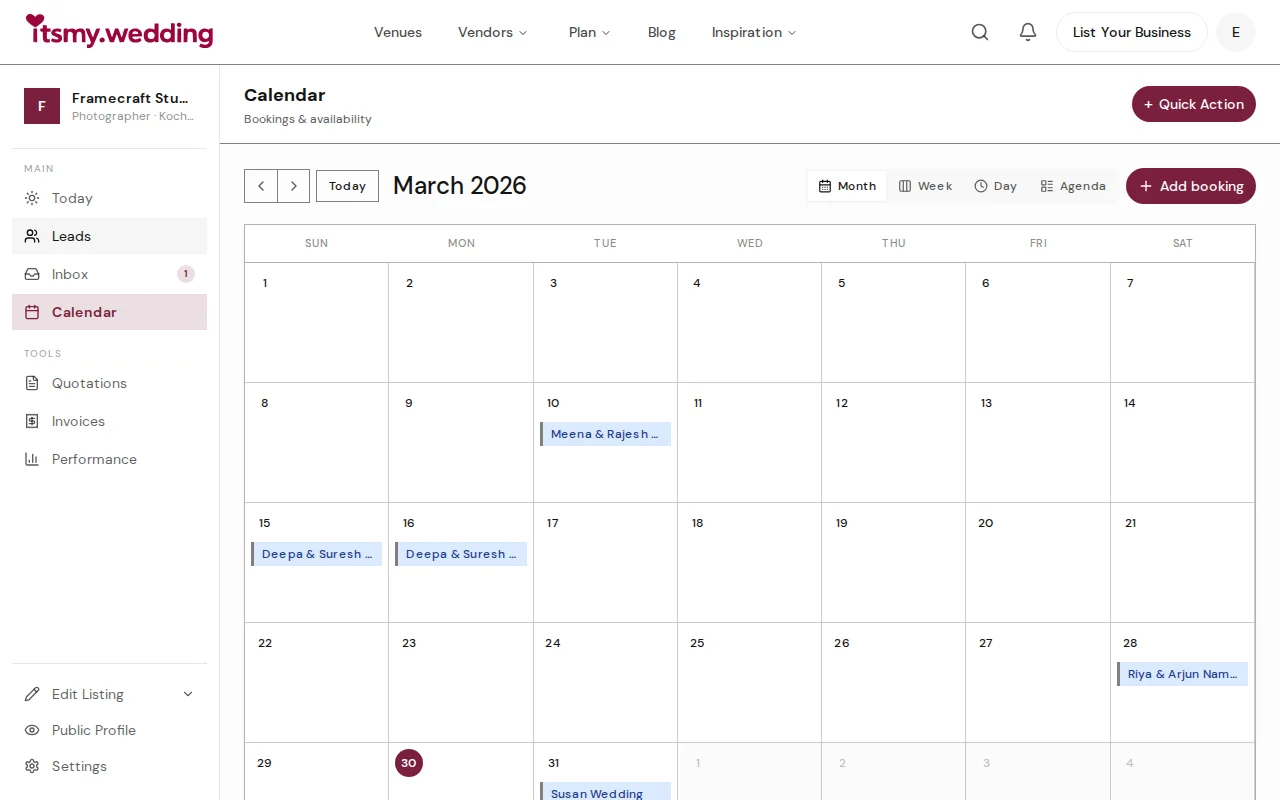
Switch to Agenda view for a clean, chronological list of all your upcoming bookings. Each entry shows the event date, client name, event type, status, and amount in a simple list format.
Agenda view is ideal for getting a quick overview of your upcoming schedule without the visual complexity of a calendar grid. It is also the easiest view to scan on a mobile phone.
See the full picture on desktop

On a desktop or laptop, the calendar expands to fill the wider screen. The month grid shows more detail per cell, booking labels are fully visible instead of truncated, and the toolbar controls are all accessible in a single row.
The sidebar on the right shows your enrichment checklist and an at-a-glance mini calendar highlighting your confirmed booking dates. This gives you a complete picture of your business at all times.
Next Steps
- Managing booking requests — respond to inquiries and send quotations
- Track leads from every channel — never lose an inquiry again
- List your business — create your vendor profile and start receiving bookings
Frequently Asked Questions
Keep learning
Related Guides

Wedding Booking Management — Send Quotes & Confirm Events Online
Manage booking requests, send professional quotations, and confirm wedding events from your vendor dashboard on itsmy.wedding.
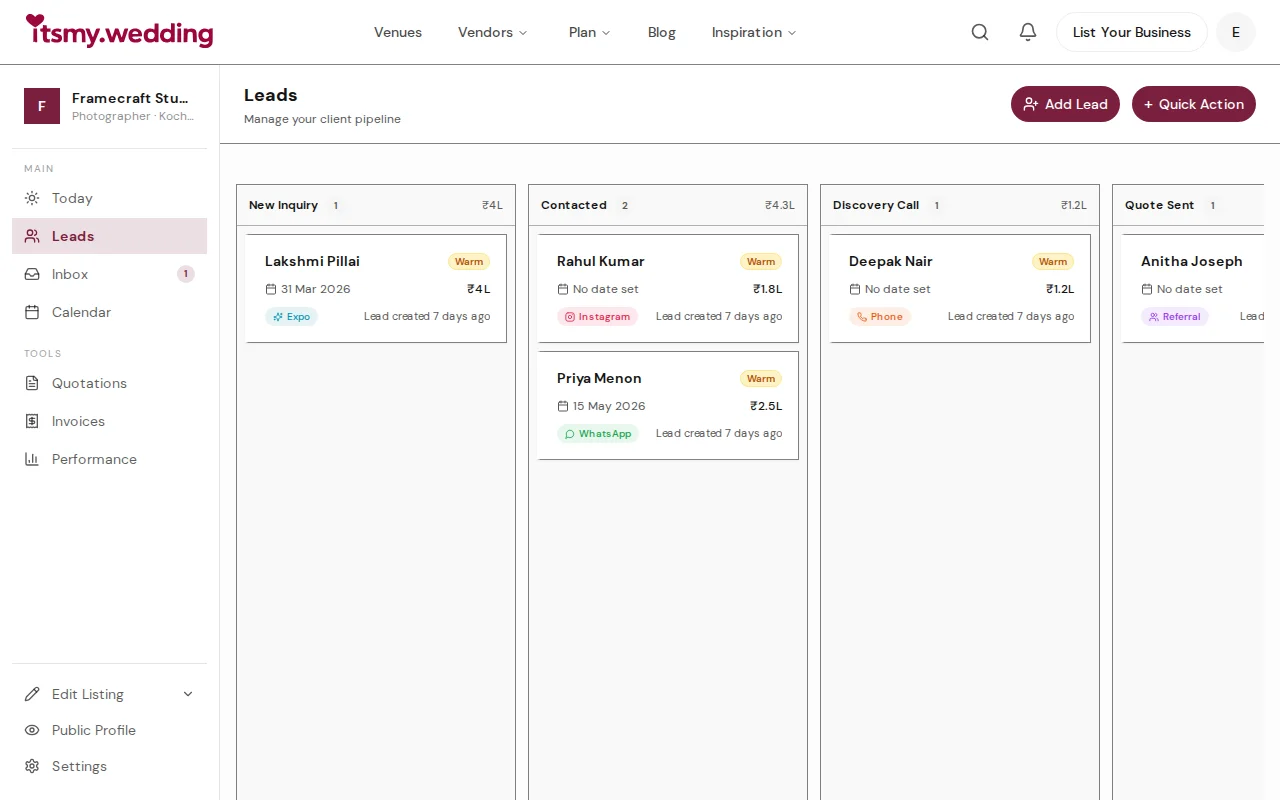
Wedding Vendor CRM — Track Leads from WhatsApp, Instagram & Referrals
Manage all your wedding inquiries in one pipeline. Track leads from every channel with automated follow-ups on itsmy.wedding.

Quick-Add Wedding Vendors in the Field — Sales Team Guide
Register a new wedding vendor in 60 seconds during a field visit. Step-by-step guide for sales executives using the Quick Add flow on itsmy.wedding.