
Wedding Payment Tracking — Milestones, Deposits & Due Dates for Vendors
Track deposits, milestone payments, and due dates for every wedding booking. Stay on top of collections with payment tracking on itsmy.wedding.
How do wedding vendors track payments from multiple clients?
During peak wedding season, a vendor might have 15 to 20 active bookings simultaneously — each with its own advance payment, interim instalments, and final balance. Without a system, it is easy to lose track of who has paid what and which payments are overdue.
itsmy.wedding includes a built-in payment tracker inside every confirmed booking. You can add milestones with specific amounts and due dates, mark payments as received when they arrive, and see a clear overview of pending and overdue amounts across all your bookings from the dashboard.
The system sends you reminders when payments are approaching their due date and alerts you when they are overdue, so you never have to manually check spreadsheets or WhatsApp messages to figure out who still owes you money.
TL;DR
Track every deposit, instalment, and balance payment across all your bookings. Set due dates, mark payments received, and get overdue alerts — all from one dashboard.
Open a confirmed booking

From your vendor dashboard, open the Inbox tab and switch to the Confirmed sub-tab. This shows all bookings where the couple has accepted your quotation and the event is upcoming.
Each confirmed booking card displays the couple's name, event date, agreed price, and advance amount. Tap any card to open the full booking detail where you will find the payment tracker section.
View the payment section

Inside a confirmed booking, scroll down to the Payments section. This area shows all payment milestones for the booking — each with its label (e.g., "Advance Deposit", "Second Instalment", "Final Balance"), amount, due date, and current status.
The status is colour-coded: green for received payments, amber for upcoming due dates, and red for overdue amounts. This gives you an instant visual summary of where things stand for each booking.
Add payment milestones

Click Add Milestone to create a new payment entry. Enter the milestone label (e.g., "Pre-event Balance"), the amount, and the due date. The system validates that your milestones do not exceed the total booking amount.
When you first confirm a booking, the advance amount from your quotation is automatically set as the first milestone. You only need to add additional milestones for interim and final payments.
Mark a milestone as paid

When you receive a payment, tap the Mark as Paid button on the relevant milestone. The status changes to "Received" with a green badge and the date is recorded. This updates the booking's payment progress bar and removes the milestone from your overdue alerts.
The payment history timeline below the milestones shows a chronological record of all payments — when they were marked as received, the amount, and any notes you added. This creates a clear audit trail for your records.
Track all payments on desktop

On desktop, the Inbox provides a wider view where you can see booking cards alongside the payment details. The dashboard stat cards at the top include your total outstanding amount and the number of overdue payments, giving you a quick pulse on collections.
Use the desktop view during your weekly accounting to reconcile payments across all active bookings. The combination of stat cards, booking list, and detailed payment milestones gives you complete financial visibility without switching between apps or spreadsheets.
Next Steps
- Managing booking requests — send quotations and confirm events
- Track leads from every channel — manage inquiries from WhatsApp, Instagram, and referrals
- Manage your availability calendar — block dates and avoid double-booking
Frequently Asked Questions
Keep learning
Related Guides

Wedding Booking Management — Send Quotes & Confirm Events Online
Manage booking requests, send professional quotations, and confirm wedding events from your vendor dashboard on itsmy.wedding.
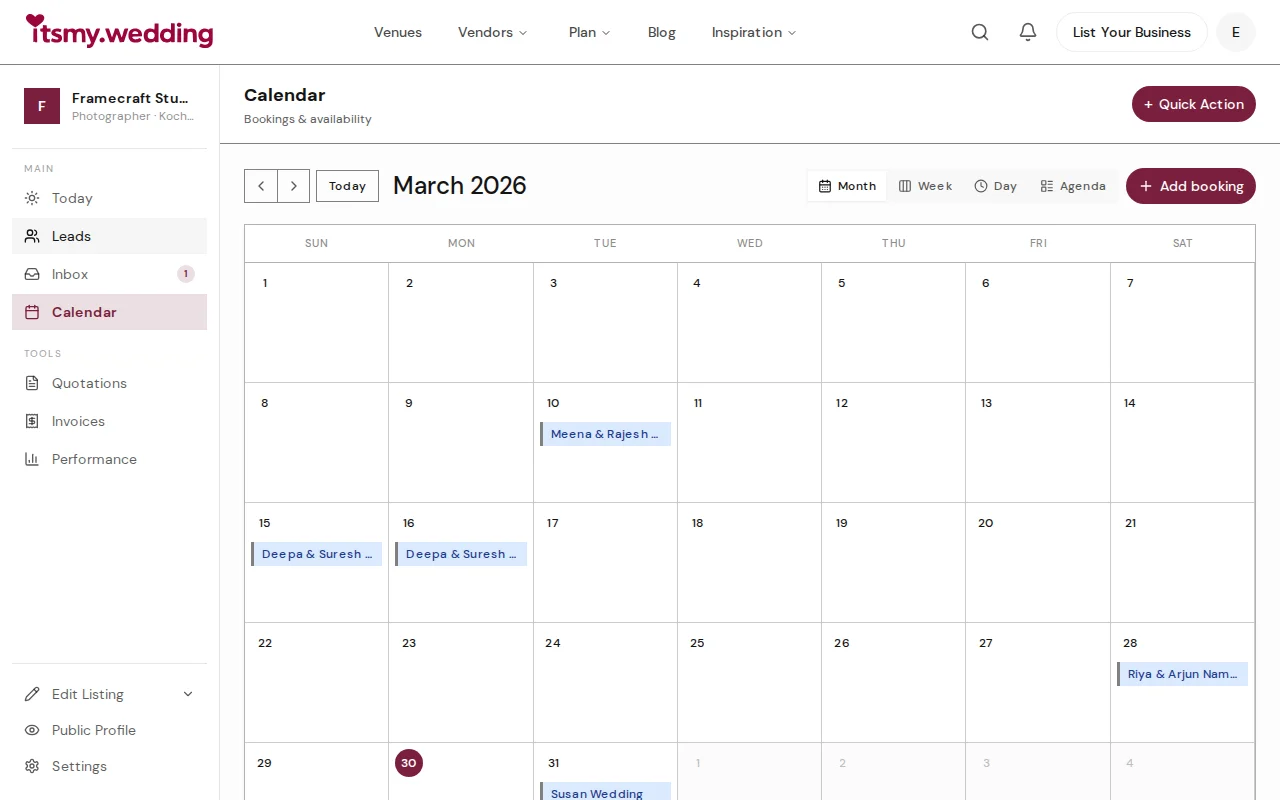
Wedding Vendor Calendar — Manage Availability & Avoid Double-Booking
Keep all your wedding bookings in one calendar. Block dates, add external bookings, and switch between month, week, and agenda views on itsmy.wedding.

Quick-Add Wedding Vendors in the Field — Sales Team Guide
Register a new wedding vendor in 60 seconds during a field visit. Step-by-step guide for sales executives using the Quick Add flow on itsmy.wedding.