
Wedding Vendor CRM — Track Leads from WhatsApp, Instagram & Referrals
Manage all your wedding inquiries in one pipeline. Track leads from every channel with automated follow-ups on itsmy.wedding.
What is a wedding vendor CRM and why do you need one?
A wedding vendor CRM (Customer Relationship Management) is a tool that helps wedding professionals track client inquiries from every channel — WhatsApp, Instagram, phone calls, referrals, and booking platforms — in one organized pipeline.
Without a CRM, leads slip through the cracks. You forget to follow up after a busy wedding weekend. You lose phone numbers. You have no idea how many inquiries you actually receive or how many turn into bookings.
itsmy.wedding includes a built-in CRM designed specifically for Kerala wedding vendors, with 7 category-specific pipelines covering all 21 vendor types, automated follow-up reminders, and real-time analytics — so you never lose a booking again.
TL;DR
Add leads from any channel in 15 seconds, track them through your pipeline, and never lose a booking again. The system even reminds you when to follow up.
Open your Leads tab
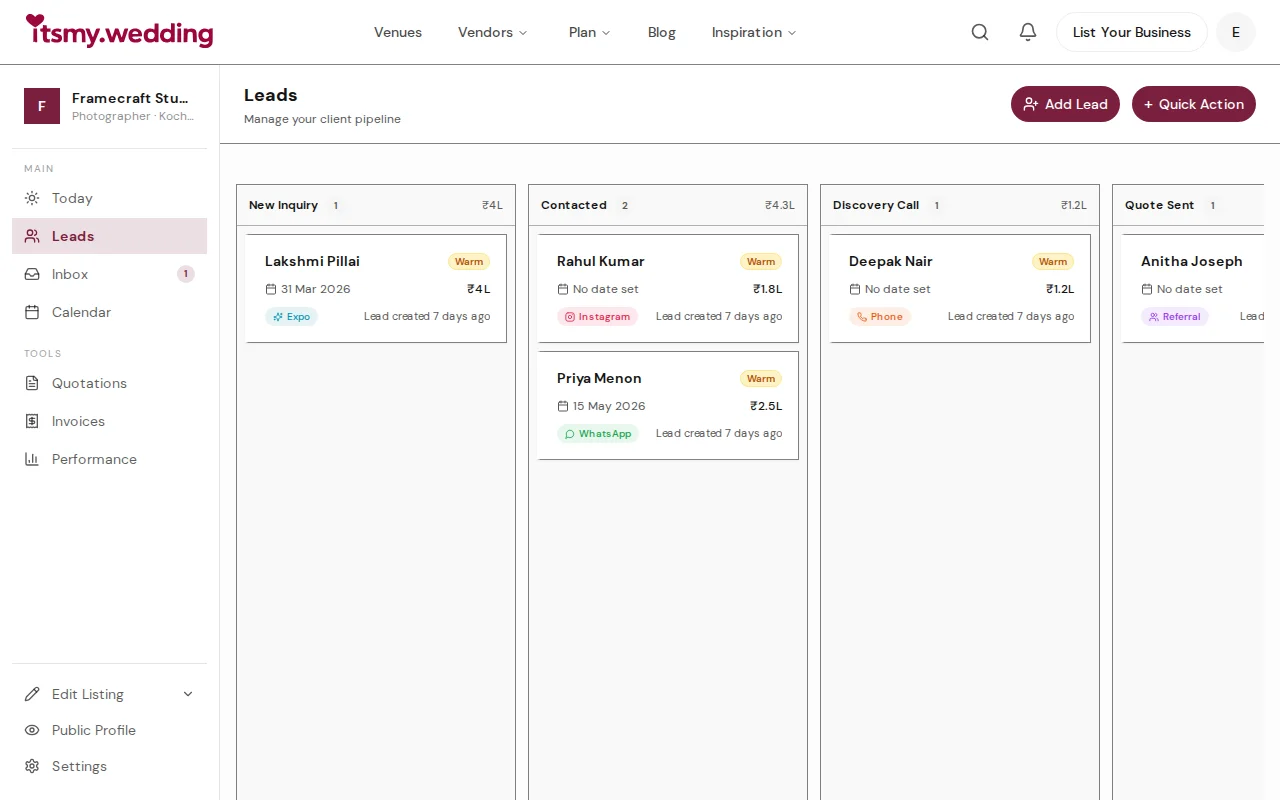
When you log into your dashboard, the Leads tab is the first thing you see. This is your command centre for every client inquiry — whether it came from WhatsApp, Instagram, a phone call, a referral, or the itsmy.wedding platform.
At the top, four stat cards show your active leads, overdue follow-ups, conversion rate, and total pipeline value. Below that, you will see your leads grouped by pipeline stage.
Tap the + button to add a lead

Tap the + button at the bottom right of the screen. A quick form slides up with three required fields: the client's name, their phone number, and where they found you.
The source options — WhatsApp, Instagram, Phone, Referral, Expo, and Other — let you tag every lead so you can see which channels drive the most business over time.
Fill in the lead details

Fill in the client name and phone number, then tap the source chip that matches how they reached you. When you pick a source like WhatsApp, a contextual field appears — in this case, "Contact name" — so you can note who referred them or how they got in touch.
Below the required section, optional fields let you add the event date, event type, estimated deal value, and any notes. The more detail you add now, the less you need to remember later.
See your lead in the pipeline

After tapping Add lead, the new entry appears instantly in your pipeline. Each lead card shows the client name, event date, source badge (colour-coded by channel), and estimated deal value at a glance.
A red left border on any card means that lead has an overdue follow-up — a visual nudge so nothing falls through the cracks during a busy season.
View the full pipeline

As you add more leads, the list grows and you can filter by pipeline stage using the chips at the top — "All", "New Inquiry", "Discovery Call", "Quote Sent", and so on. The chip labels and stages are tailored to your vendor category, so they match how you actually work.
Each chip shows a count, so you can instantly see how many leads are waiting at each step. Tap a chip to filter the view.
Open a lead to see full details
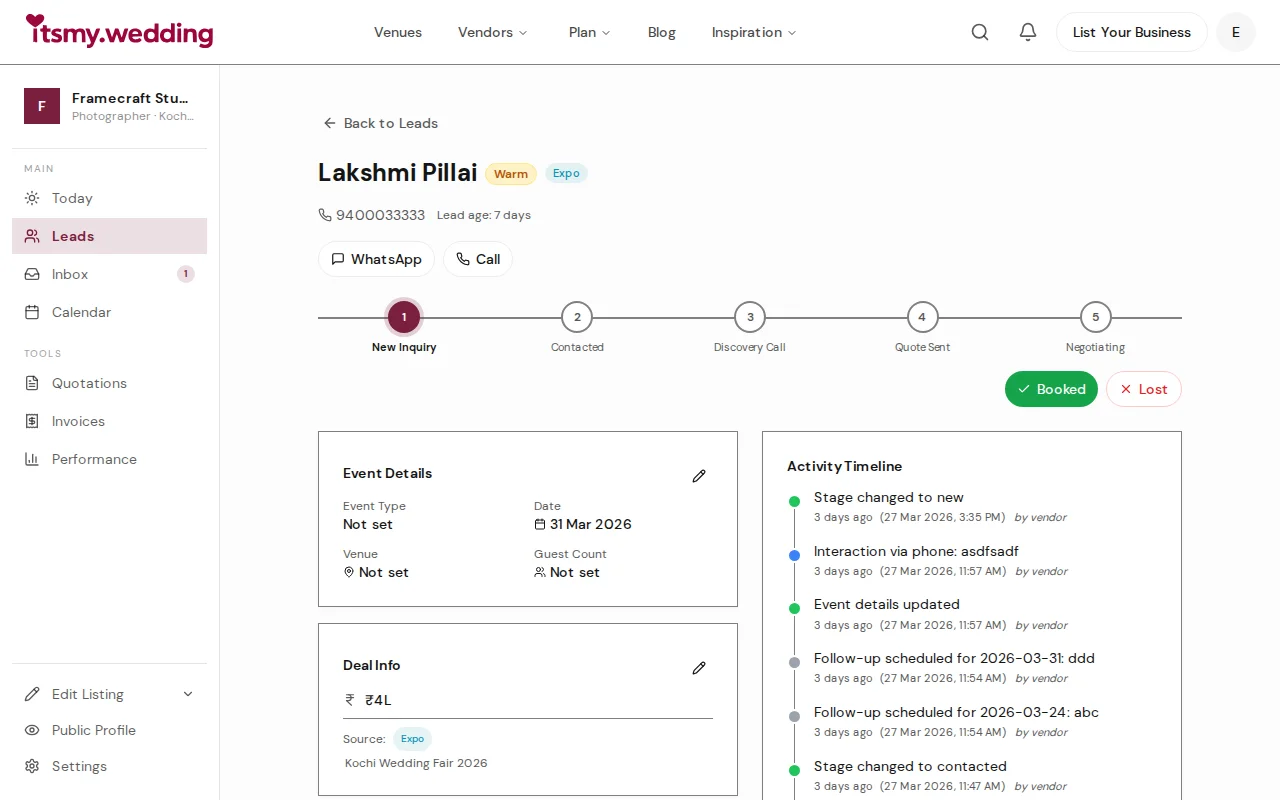
Tap any lead card to open the full detail view. Here you will find everything about this inquiry: the stage progress bar showing where they are in your pipeline, a follow-up card with the next action date, client contact details, estimated value, and a complete activity timeline.
From this page you can change the lead's stage, set a follow-up reminder, add notes, log interactions (calls, messages, meetings), and adjust the priority between Hot, Warm, and Cold.
Use the Kanban board on desktop
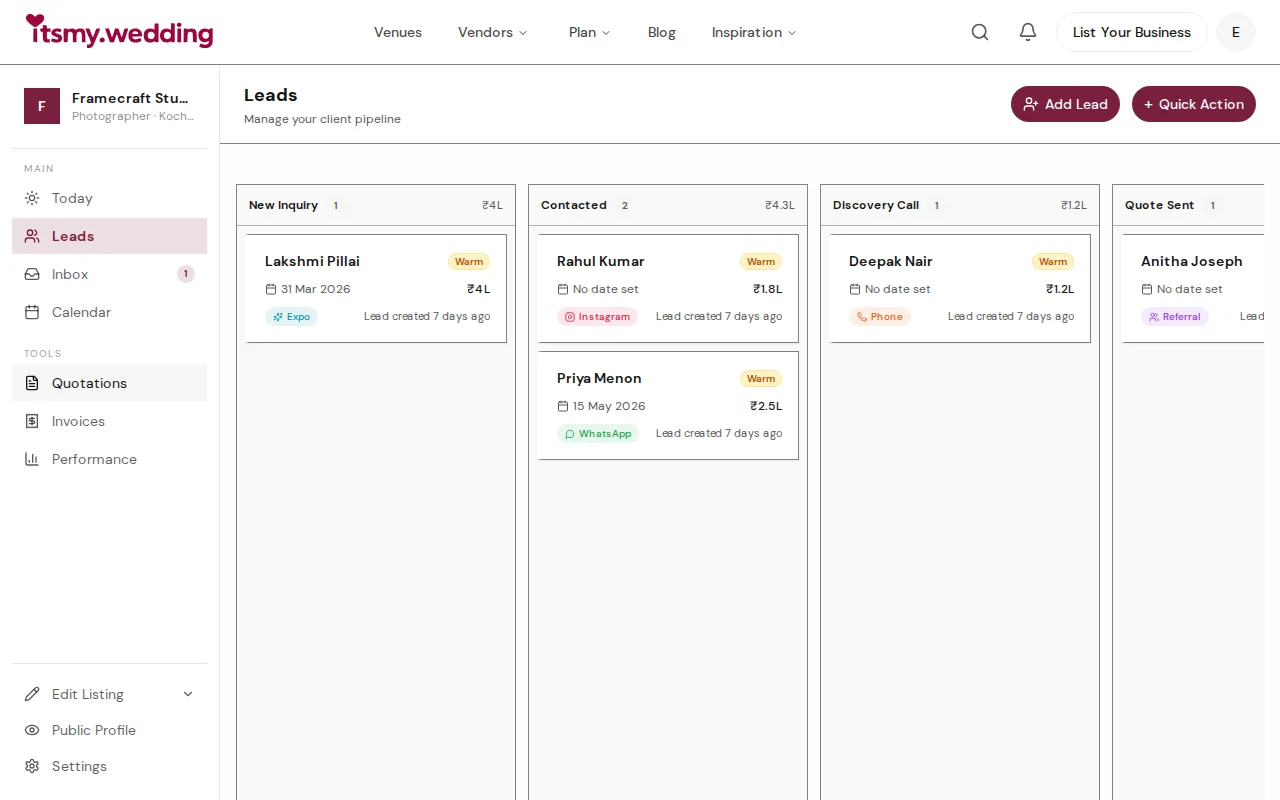
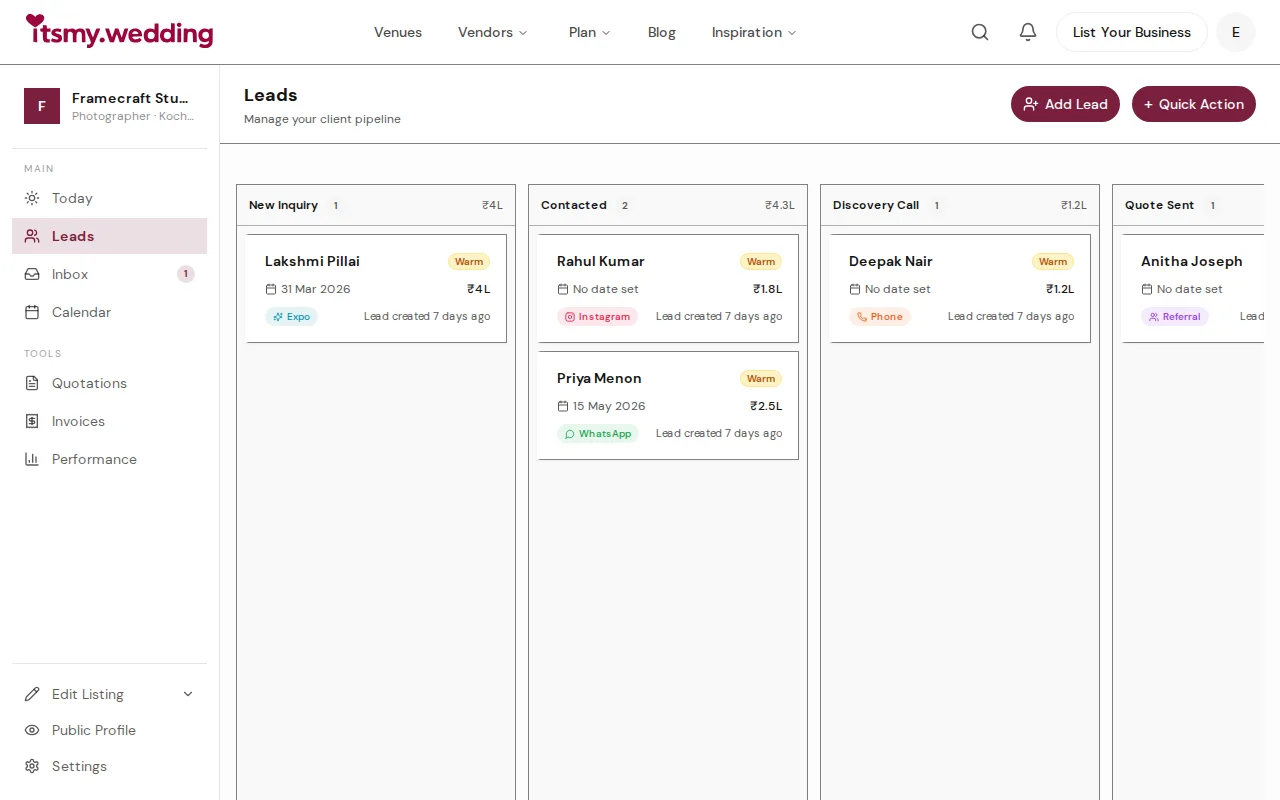
On a desktop or laptop, the leads view automatically switches to a Kanban board — columns for each pipeline stage with your leads as draggable cards. Drag a card from one column to the next as the inquiry progresses.
If you drag a lead to the "Lost" column, a dialog asks for the reason (budget, chose competitor, date conflict, etc.), which feeds into your conversion analytics over time.
Track your numbers at a glance
At the top of your Leads tab, four stat cards give you a real-time pulse on your business. Active Leads shows how many open inquiries you have. Needs Follow-up turns red when any lead has an overdue reminder. Conversion Rate tracks how many leads you convert to bookings this month. Pipeline Value totals the estimated deal value of all active leads.
Below the stats, a conversion funnel chart shows where leads drop off in your pipeline — helping you pinpoint exactly which stage needs improvement to close more bookings.
Next Steps
- Responding to booking requests — when a lead becomes a formal booking
- Setting up automation — let the system follow up for you
- Managing your calendar — keep all bookings in one place
Frequently Asked Questions
Keep learning
Related Guides

Wedding Booking Management — Send Quotes & Confirm Events Online
Manage booking requests, send professional quotations, and confirm wedding events from your vendor dashboard on itsmy.wedding.

Automated Follow-Ups for Wedding Vendors — Never Lose a Lead Again
Set up automated nudges, follow-up reminders, and stage changes so no wedding lead falls through the cracks. Configure automation on itsmy.wedding.

Quick-Add Wedding Vendors in the Field — Sales Team Guide
Register a new wedding vendor in 60 seconds during a field visit. Step-by-step guide for sales executives using the Quick Add flow on itsmy.wedding.