
Track Your Onboarded Vendors — Sales Executive Dashboard
Monitor vendor onboarding status, track claim rates, filter by status, and send reminders from your sales executive dashboard on itsmy.wedding.
How do sales executives monitor the vendors they've onboarded?
The Sales Executive Dashboard is your command centre for tracking every vendor you have registered on the platform. It shows real-time statistics across four dimensions: how many vendors you onboarded this month, how many are waiting to claim their profiles, how many are fully active, and how many need your attention.
Below the stats, a searchable and filterable vendor table lists every vendor you have created. Each row shows the vendor's name, category, location, current status, and action buttons for editing, viewing, and sending reminders.
The dashboard helps you answer the questions that matter: Which vendors have not claimed their profiles yet? Who needs a nudge? Which profiles are incomplete and might need your help? By monitoring these numbers regularly, you can maximize your conversion rate from quick-adds to active, booking-ready profiles.
TL;DR
Track onboarding stats, filter vendors by status, search by name, and send claim reminders — all from one dashboard view.
View your dashboard stats

When you open your dashboard, four stat cards give you an instant overview of your onboarding performance. Onboarded This Month tracks how many vendors you registered this period. Pending Vendor Claim shows profiles waiting to be claimed. Completed & Active counts fully live profiles. Needs Attention flags profiles that are stuck or incomplete.
These numbers update in real time as vendors claim profiles and complete their setup. Use them during weekly reviews to track your team's onboarding velocity and identify bottlenecks.
See the full picture on desktop

On a desktop or laptop, all four stat cards display in a single row with the vendor table immediately below. This gives you the complete picture without scrolling — stats at the top, vendor details below.
The desktop layout is ideal for your weekly review sessions or when presenting onboarding progress to management. You can see all vendors, their statuses, and take action without navigating between screens.
Browse the vendor table

The vendor table lists every vendor you have onboarded. Each row displays the vendor's name, category, city, current status badge, and action buttons. The status badge is colour-coded: yellow for Pending Claim, orange for Incomplete, green for Active, and red for Rejected.
Action buttons on each row let you View the vendor's public profile, Edit their details (useful when they need help completing their profile), and Remind them to claim or complete their profile.
Filter by onboarding status

Above the vendor table, a row of filter buttons lets you narrow the list by status: All, Pending Claim, Incomplete, Active, and Rejected. Click any filter to instantly show only vendors in that state.
The Pending Claim filter is particularly useful during follow-up sessions. It shows exactly which vendors have not yet signed up to claim their profiles, so you can send targeted reminders. Each filter chip shows a count of matching vendors.
Search for a specific vendor

The search field above the table lets you find any vendor by name. Type a few characters and the table filters in real time. This is useful when a vendor calls you and you need to quickly pull up their profile, or when you want to check the status of a specific registration.
Search works alongside the status filters — you can filter by "Pending Claim" and then search within that set to find a specific vendor. Clear the search field to see all vendors in the selected status again.
Next Steps
- Quick-add a vendor — register vendors in the field in 60 seconds
- Build a full vendor profile — use Concierge Mode for complete setups
Frequently Asked Questions
Keep learning
Related Guides

Quick-Add Wedding Vendors in the Field — Sales Team Guide
Register a new wedding vendor in 60 seconds during a field visit. Step-by-step guide for sales executives using the Quick Add flow on itsmy.wedding.

Build a Complete Vendor Profile — Concierge Mode for Sales Teams
Create a complete, professional vendor storefront on their behalf using the full onboarding wizard. Step-by-step guide for sales executives.
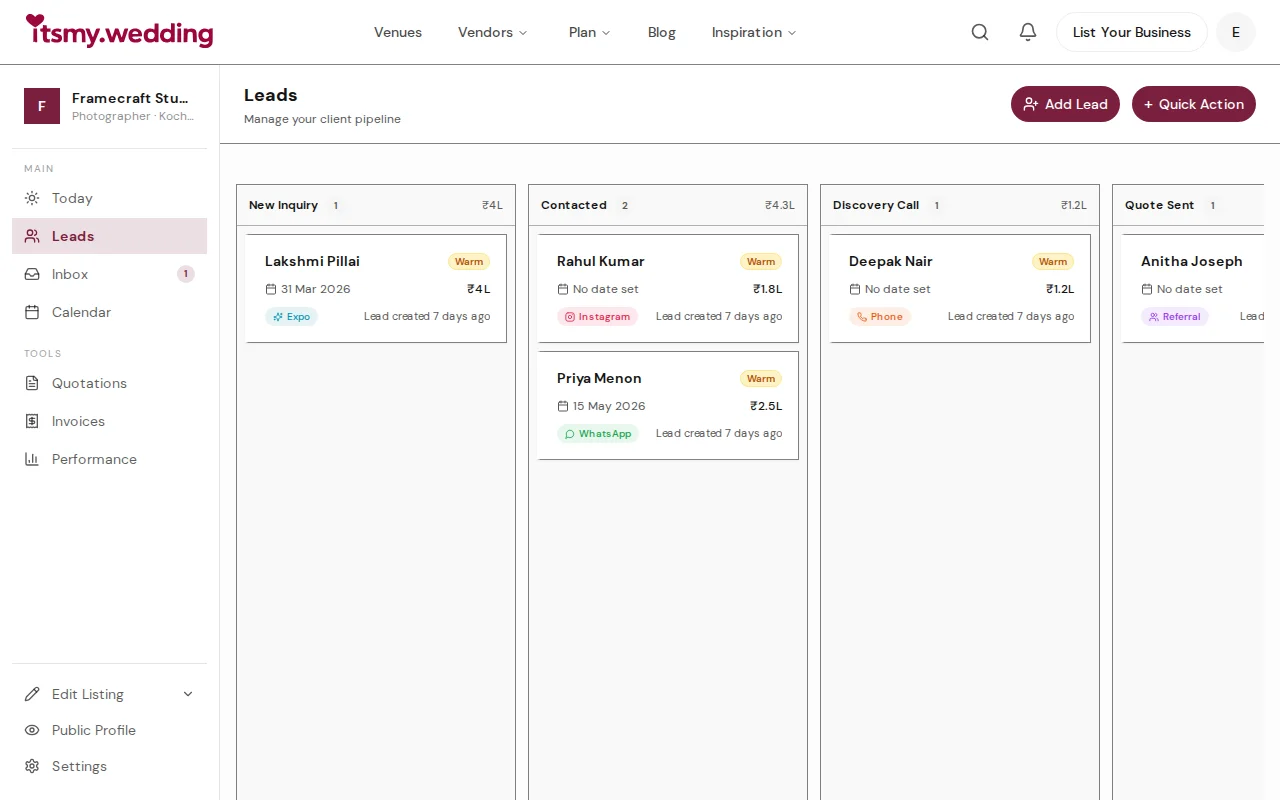
Wedding Vendor CRM — Track Leads from WhatsApp, Instagram & Referrals
Manage all your wedding inquiries in one pipeline. Track leads from every channel with automated follow-ups on itsmy.wedding.