
Professional Wedding Quotations — Create, Share & Track Itemized Quotes
Create detailed, itemized quotations for wedding clients with line items, optional add-ons, discounts, and terms. Share via link or PDF, track acceptance, and auto-generate invoices.
How do wedding vendors create and send professional quotations?
Most wedding vendors create quotations by typing numbers into WhatsApp messages or manually editing Word documents. This works for one or two clients, but during wedding season when you are sending ten quotes a week, it becomes a mess — no tracking, no templates, no way to know if the client even opened it.
On itsmy.wedding, you create structured, itemized quotations from your dashboard. Each quote has line items with quantities and rates, optional add-ons the client can choose, discounts, advance amounts, and terms. The client receives a professional link they can view on any device, accept, request changes, or decline — and you see every status change in real time.
When a client accepts, a booking is automatically created and a draft invoice is generated. No re-entering data. No copy-pasting. The quote flows directly into your business workflow.
TL;DR
Create itemized quotations with line items, add-ons, and terms from your dashboard. Share via email or WhatsApp link. Track when clients view, accept, or request changes. Accepted quotations auto-create bookings and draft invoices.
Open the Quotations page

From your vendor dashboard, navigate to Quotations. This page shows all your quotations organized by status — Draft, Sent, Viewed, Accepted, Declined, and Revision Requested.
Each quotation card shows the client name, quotation title, grand total, and current status. Click any quotation to see its full details, or click New Quotation to create one.
Create a new quotation
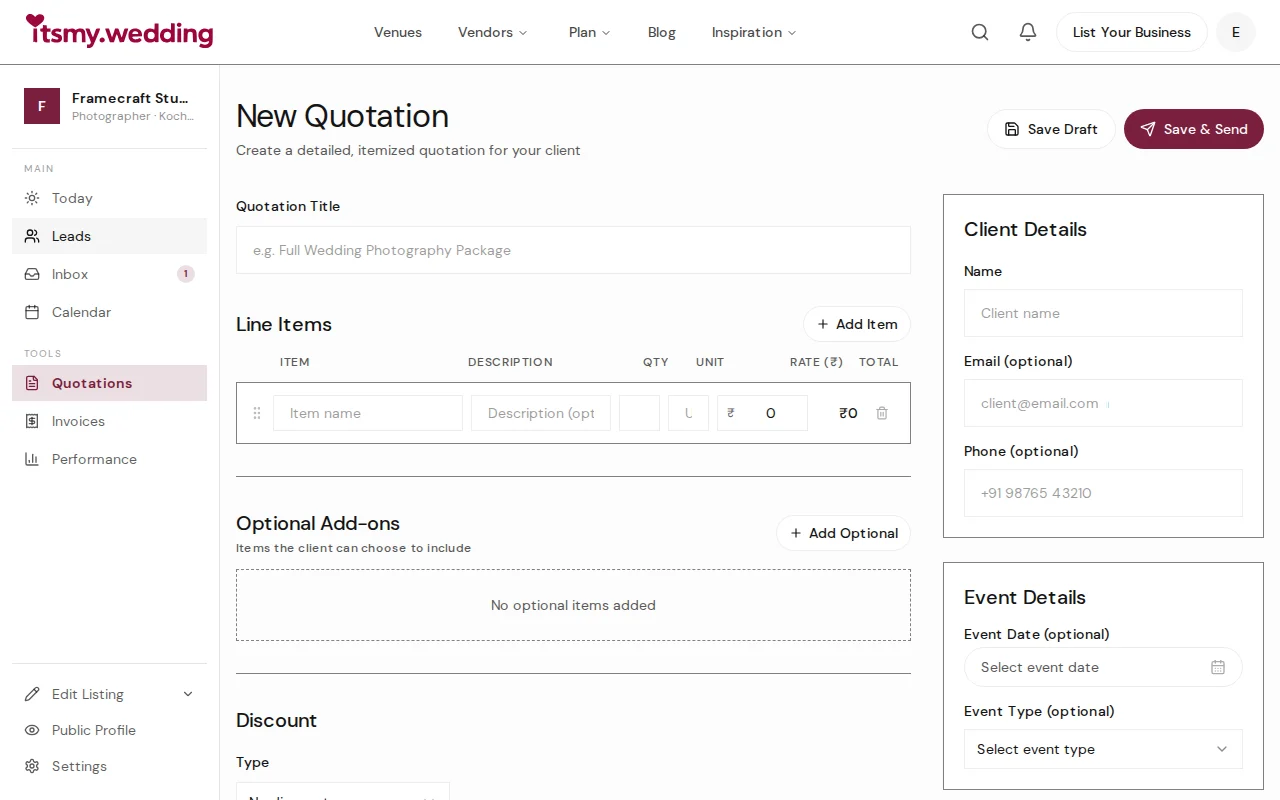
Click New Quotation to open the quotation builder. Start by giving it a descriptive title like "Full Wedding Photography Package" or "Reception Decoration — Gold Theme".
Fill in the client details — name is required, email and phone are optional but recommended so the client receives the quotation link automatically. If you are quoting for a couple on the platform, their details are pre-filled from the chat.
Add line items and optional add-ons
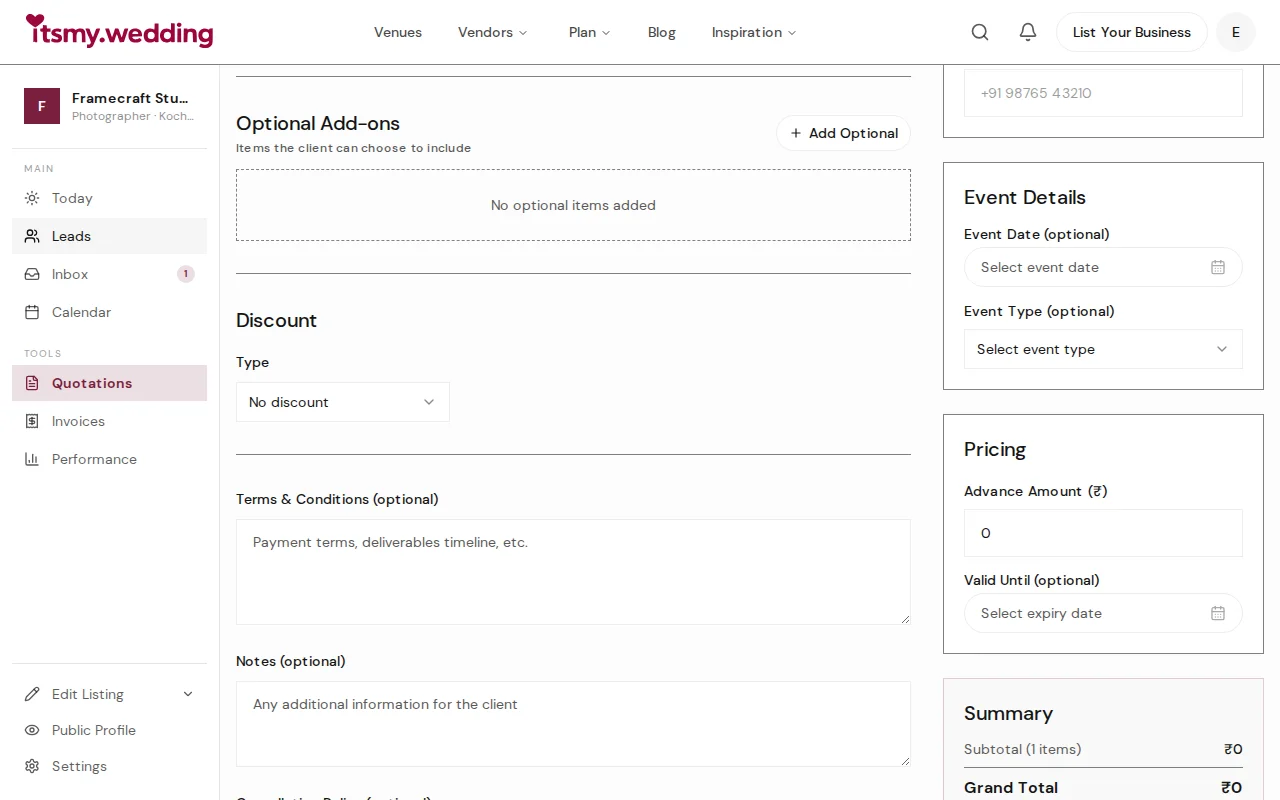
Add each service as a separate line item with a label, description, quantity, unit (hours, days, sets), and rate. The total for each line is calculated automatically.
Below the main items, you can add Optional Add-ons — services the client can choose to include, like a pre-wedding shoot or extra album. These are shown separately on the quotation so the client knows what is included versus what is extra.
Set a discount (percentage or flat amount), an advance amount, and fill in terms, notes, and cancellation policy. The summary sidebar on the right shows the running total as you build.
Review and send

You have two options: Save Draft to review later, or Save & Send to create the quotation and send it to the client immediately.
When you send, the client receives an email with the quotation summary and a link to view the full breakdown. You also receive a confirmation that the quotation was sent. If you saved a template, it is available for your next quotation.
Track quotation status
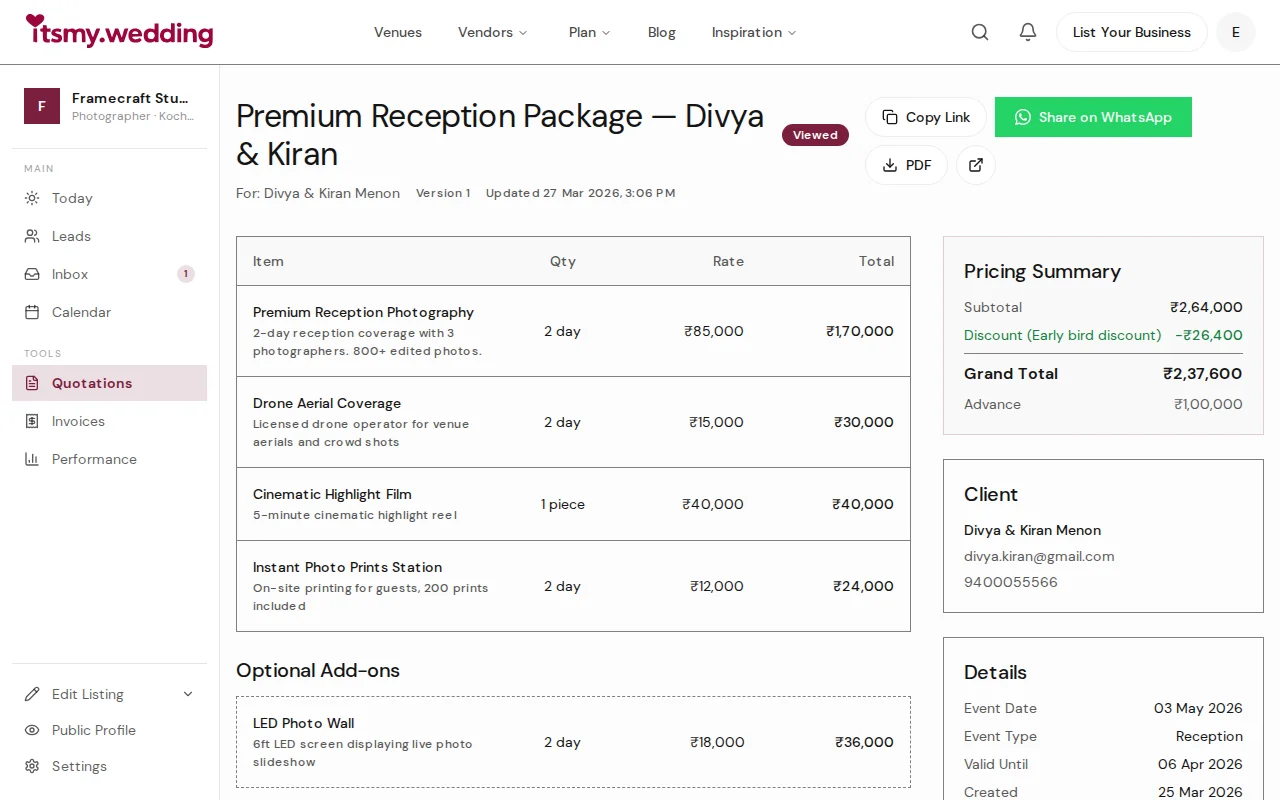
Open any quotation to see its current status in real time. When the client opens the link, the status changes from "Sent" to "Viewed" automatically. You can see exactly when they viewed it.
From this page you can: copy the share link to send via WhatsApp, download the PDF, revise and resend the quotation, or delete a draft. If the quotation has been accepted, you will also see linked invoices and the booking that was created.
Client views and responds
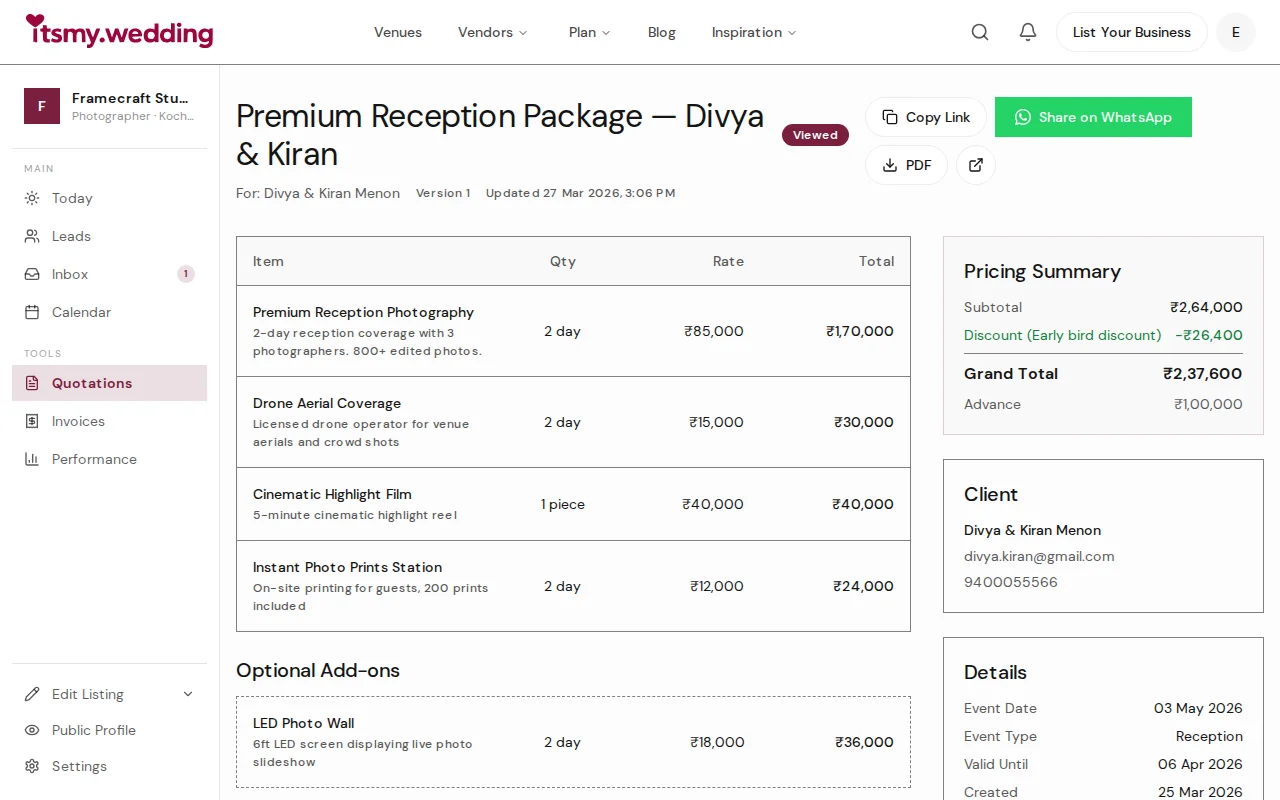
The client sees a professional quotation page with your business name, logo, and contact details at the top. Below that is the full line-item breakdown, optional add-ons, discount, grand total, advance amount, terms, and notes.
At the bottom, three buttons: Accept, Request Revision, or Decline. If they accept, a booking is created and a draft invoice is generated. If they request revision, you receive a notification with their message and can update the quotation.
Next Steps
- Generate invoices from quotations — send professional invoices with GST and payment tracking
- Manage booking requests — handle the full booking lifecycle
- Track all your leads — manage inquiries from every channel in one pipeline
Frequently Asked Questions
Keep learning
Related Guides

Wedding Booking Management — Send Quotes & Confirm Events Online
Manage booking requests, send professional quotations, and confirm wedding events from your vendor dashboard on itsmy.wedding.

Wedding Vendor Invoicing — Generate GST Invoices, Track Payments & Get Paid Faster
Create professional proforma and tax invoices for wedding clients. Track advance payments, send GST-compliant invoices, and manage your cash flow — all from your vendor dashboard on itsmy.wedding.
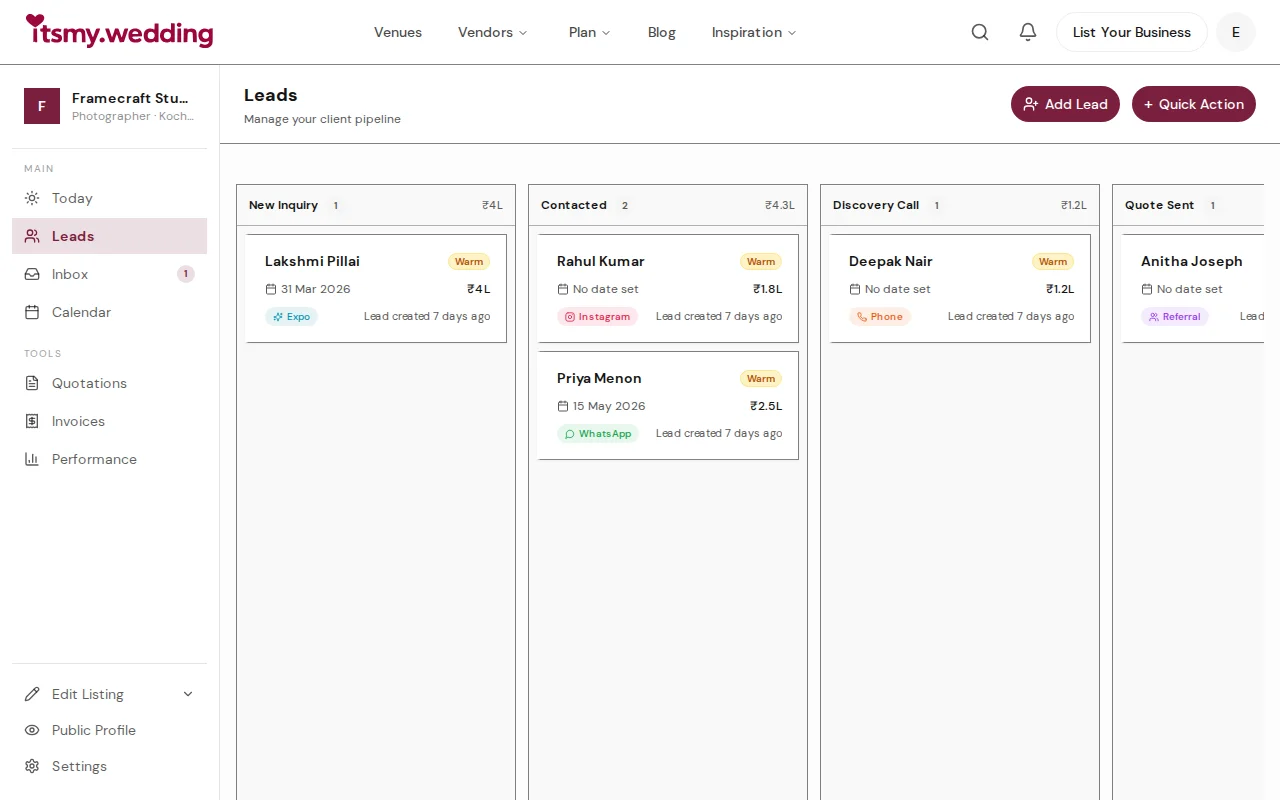
Wedding Vendor CRM — Track Leads from WhatsApp, Instagram & Referrals
Manage all your wedding inquiries in one pipeline. Track leads from every channel with automated follow-ups on itsmy.wedding.