
Platform bookings and external ones in one calendar. Block dates, check availability in seconds.

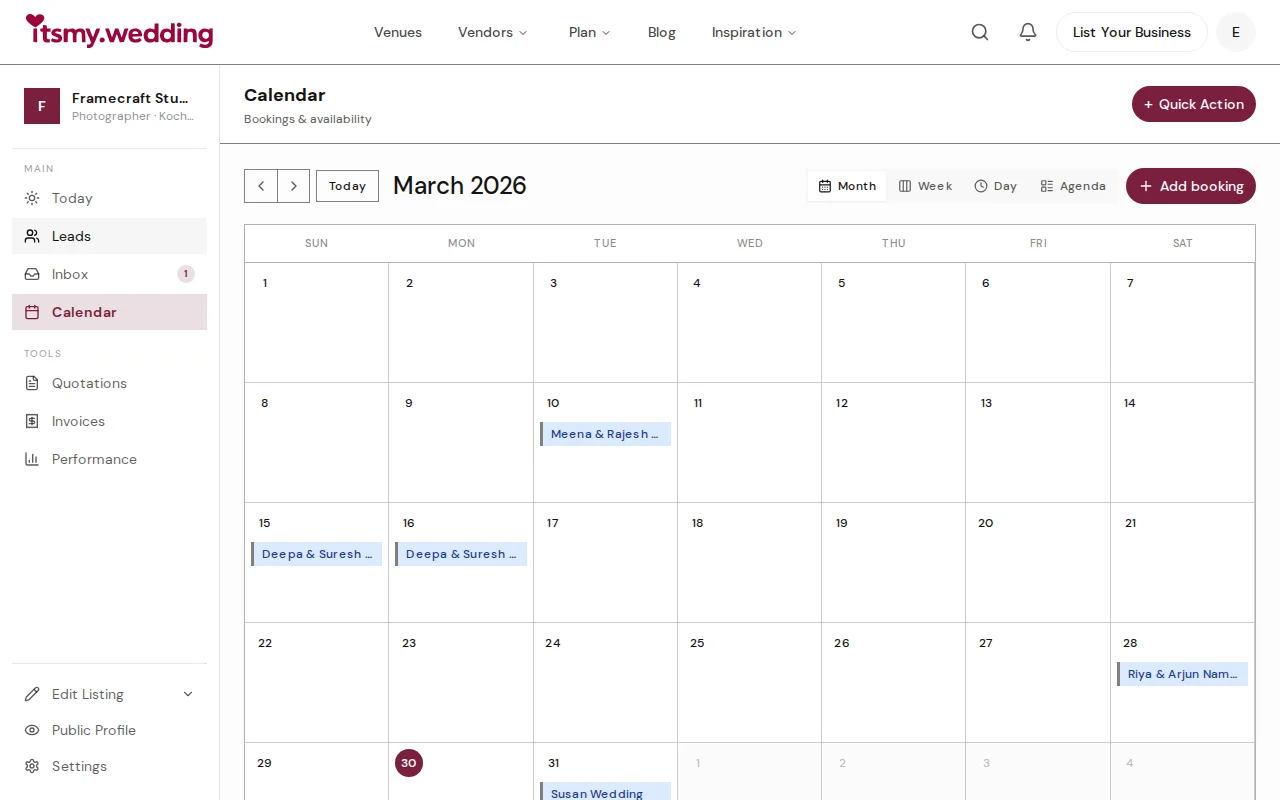
01
Month view — see your entire wedding season with colour-coded bookings.
02
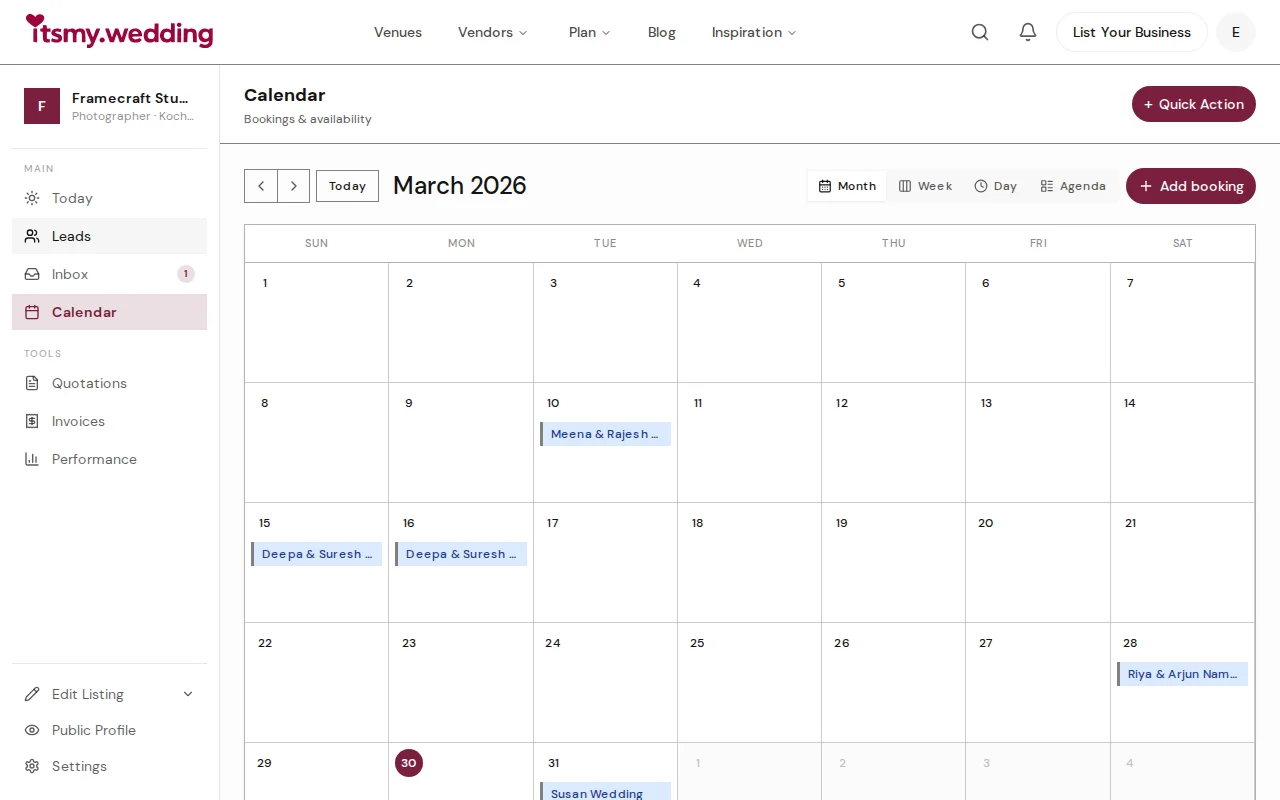
Add bookings from any source — phone calls, referrals, other platforms.
03
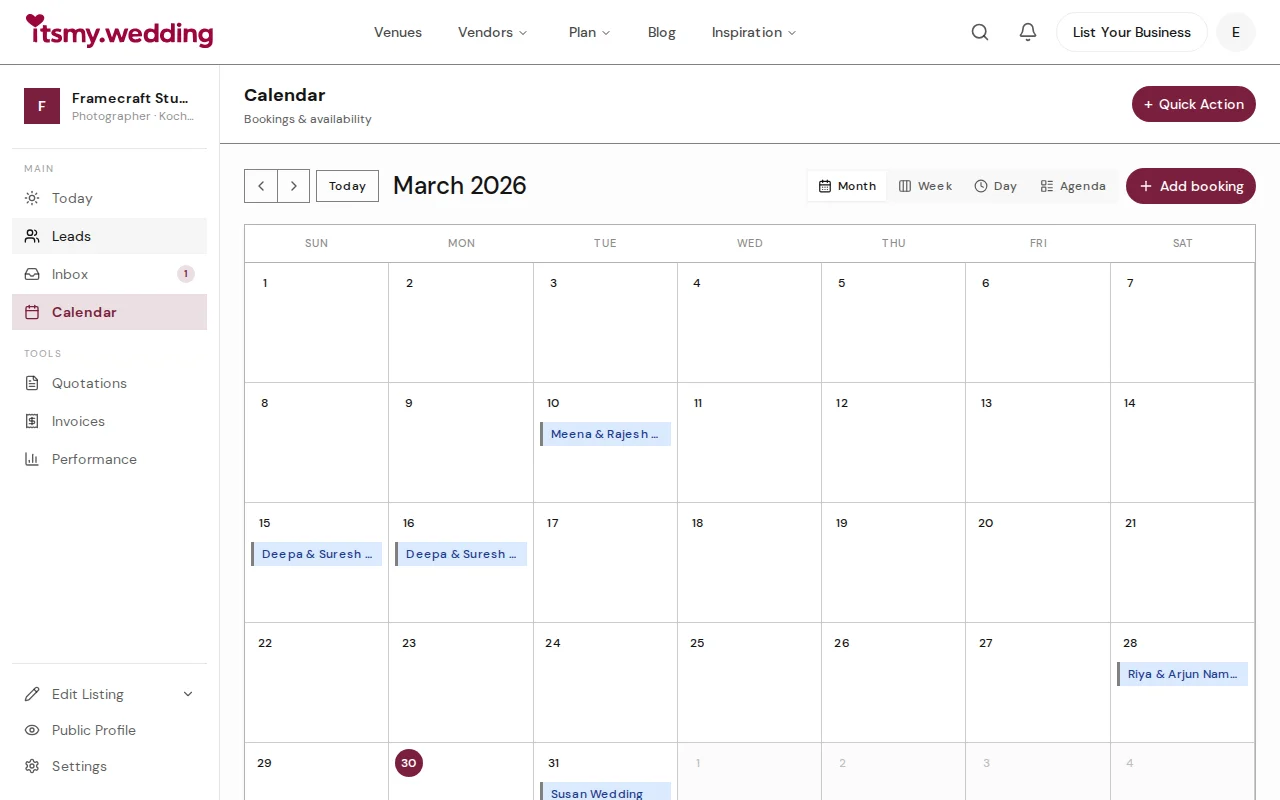
Week view — plan your days around confirmed and pending weddings.
04
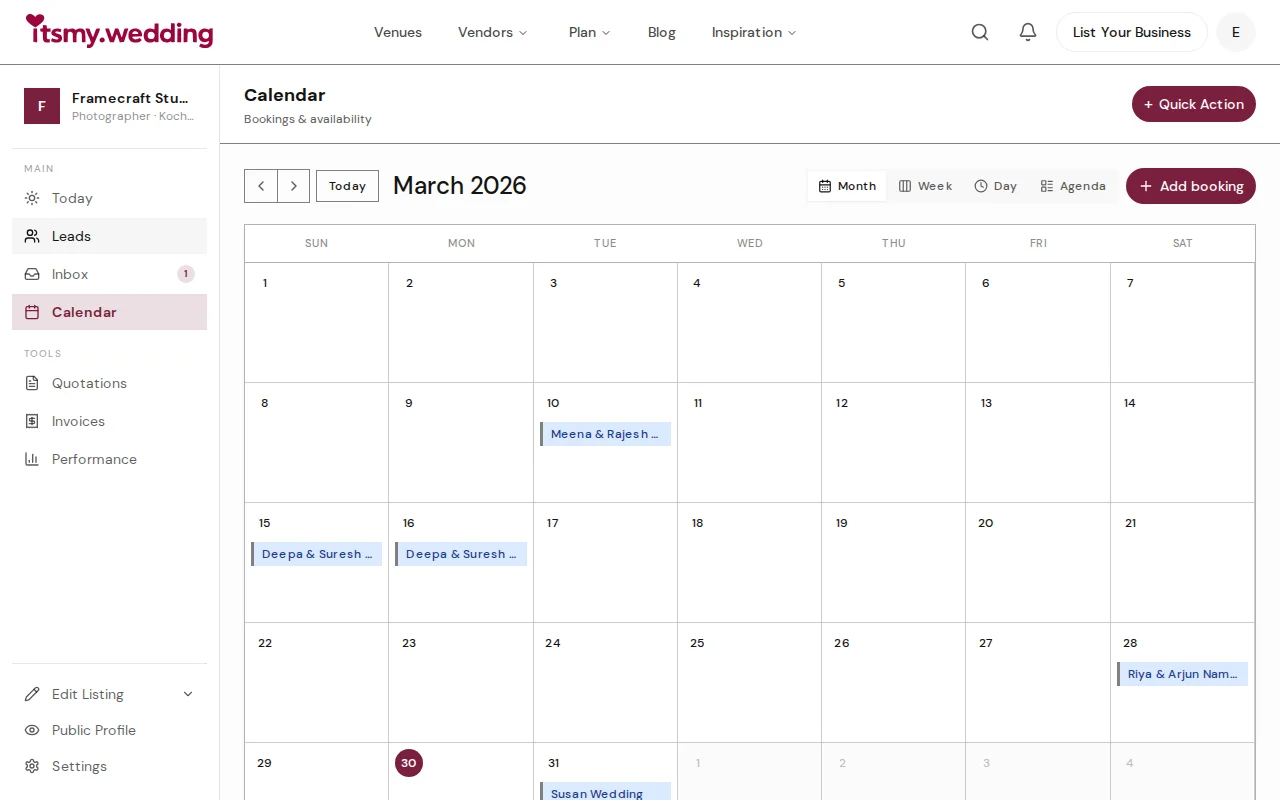
Agenda view — a clean list of upcoming bookings with client details.
You double-booked a wedding date. Two couples, same day, and now one of them is furious.
Confirmed in green, pending in amber, external in blue, completed in grey. Your entire season at a glance — double-books caught before they happen.
Phone-call and referral bookings aren't in your system — only platform enquiries show up.
Add a client name, date, and amount in one tap. The calendar shows the complete picture, wherever the booking came from.
A couple calls asking if you're free on March 15th. You need five minutes to check.
Open the calendar, tap the date, answer in seconds. Every booking on that date in one view — no notebook, no scrolling.
Yes. Click 'Add booking' on the calendar toolbar or tap any date to add an external booking. Enter the client name, phone number, event type, and amount. External bookings appear with a blue indicator to distinguish them from platform bookings.
Navigate to your availability settings through the enrichment checklist on your dashboard. Blocked dates appear with a distinct marker on the calendar and prevent new booking requests for those days.
Green indicates a confirmed booking. Amber means the booking is still pending your response. Blue marks external bookings you added manually. Grey shows completed past events.
Yes. Use the view toggle to switch between Month, Week, Day, and Agenda views. Month view shows the big picture, Week and Day views show time slots, and Agenda lists upcoming bookings chronologically.
Automatically. When a couple sends a booking request through itsmy.wedding, it appears on your calendar immediately as a pending booking. When you confirm it, the colour changes to green. Cancelled or rejected bookings are removed.
Ready when you are
2-minute setup. Works on your phone.
Get startedIncluded on Pro and Elite. See pricing →